A social media content background remover is a tool that cuts the subject out of a photo so you can place it on any backdrop. Creators and brands use it to make product shots, thumbnails, and story graphics look clean and consistent. This guide explains how it works, when it helps, and how to get good results.
Quick answer: Upload a sharp photo, let the tool detect the subject, refine the edges, add a new background, and export a PNG. The whole process usually takes under five minutes.
What Is a Social Media Content Background Remover?
A social media content background remover is software that separates a subject from its surroundings. It outputs the subject on a transparent layer, often as a PNG file. From there, you can drop it onto a solid color, a gradient, or a lifestyle scene.
Most modern tools use machine learning to detect edges automatically. As a result, a task that once took minutes in manual editing software now takes seconds.
Why Clean Backgrounds Matter for Social Content
Feeds are crowded, and viewers decide quickly. A cluttered background pulls attention away from the product or person. A clean cutout keeps the focus where you want it.
Consistency also builds recognition. When every post shares a similar backdrop, your feed looks planned rather than random. In addition, one cutout can be reused across posts, ads, thumbnails, and email banners.
Common Use Cases
- Product photos for ecommerce and shop posts
- YouTube and TikTok thumbnails with a bold subject
- Profile photos and creator media kits
- Collages and promo graphics for sponsored posts
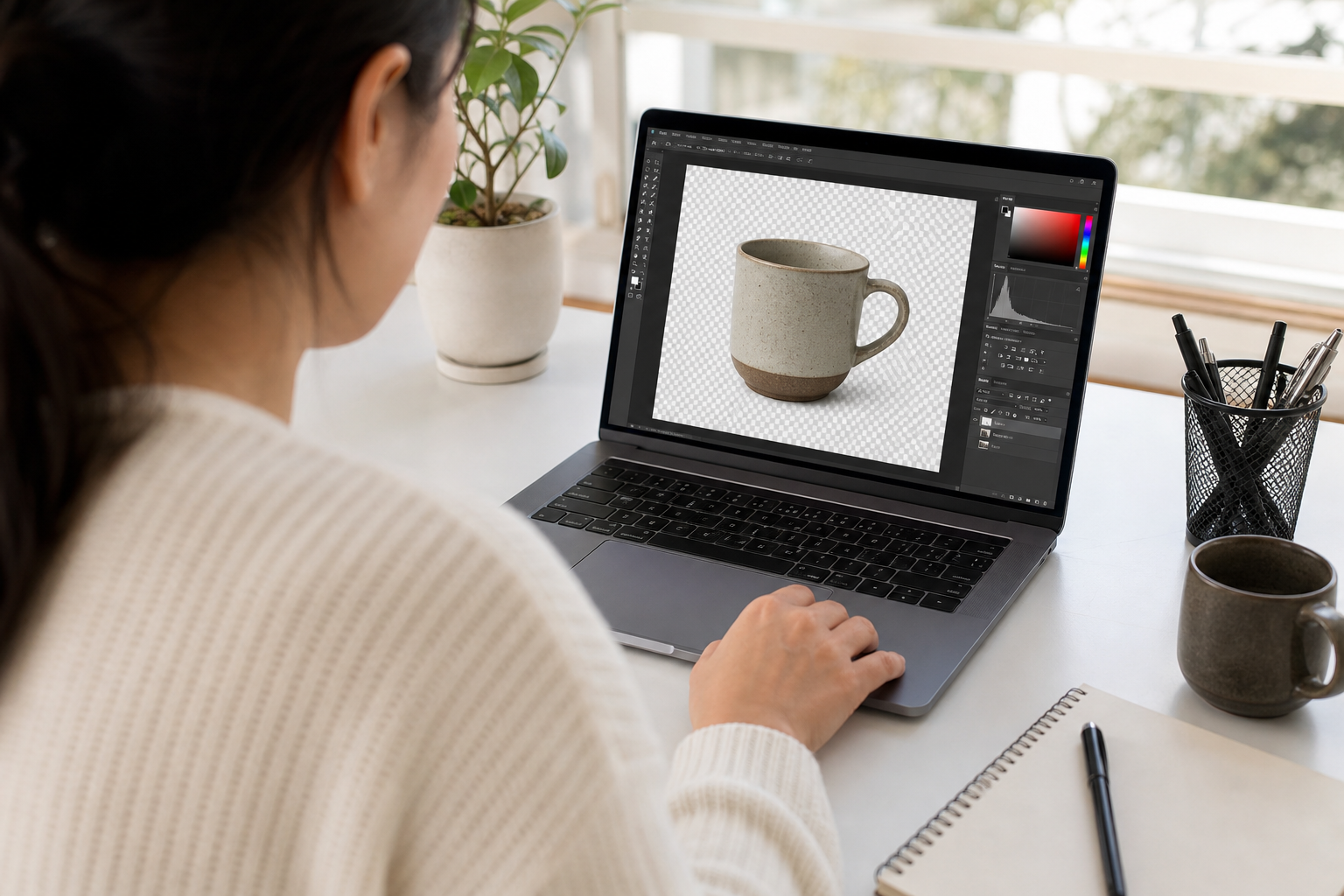
A creator prepares a product cutout with a social media content background remover.
How to Remove a Photo Background in 5 Steps
- Choose a sharp source photo. Pick a high-resolution image with even light and a subject that contrasts with its background.
- Upload it to the remover. The tool detects the main subject within a few seconds.
- Refine the edges. Zoom in on hair, corners, and thin parts, then restore or erase small areas.
- Add a new background. Use a solid color, gradient, or scene that fits your brand.
- Export at full size. Save a PNG for transparency or a JPG for a flat backdrop.
Tips for Cleaner Cutouts
Good input matters more than any setting. Therefore, start with the photo, not the software.
- Shoot in even, soft light to avoid harsh shadows.
- Use a backdrop that contrasts with the subject.
- Keep the whole subject in frame with a small margin.
- Check edges at 200% zoom before you export.
- Add a soft shadow back so products do not look pasted on.
Mistakes to Avoid
Leftover halos around the subject are the most common problem. Low-resolution exports come next, followed by cut-off edges. Moreover, a bright cutout placed on a dark scene without matching the light looks fake. Adjust brightness and color so the subject fits its new setting.
Choosing an Image Cutout Tool
Compare tools on a few practical points. Free options suit simple subjects, while complex edges or large batches may need more control.
| What to check | Why it matters |
|---|---|
| Output resolution | Low limits blur ads and thumbnails |
| Edge refinement | Fixes hair, fur, and fine details |
| Transparent export | Lets you reuse the cutout anywhere |
| Extra editing tools | Saves switching between apps |
Background Removal in an Influencer Workflow
SocialBook is an influencer marketing platform with content creation tools, including a photo studio, background remover, and basic photo and video editing. That puts editing next to creator search, outreach, and campaign management. Creators can polish content, while brands can prepare clean product visuals for campaigns.
Good visuals work best with good partners. Before you brief a creator, review their audience with an audience demographics tool. You can also study what competitors publish using competitor monitoring, then design your cutouts to stand apart. For a full overview, see what the SocialBook toolset includes.

A product cutout on a pastel backdrop, ready for a feed post.
Image Format and Size Basics
PNG stores transparency, as defined in the W3C PNG specification. JPG does not, but it makes smaller files. Keep a PNG master, then export JPGs for each placement. Platform sizes change over time, so check each network's current guidelines before you publish.
Frequently Asked Questions
What is a social media content background remover?
It is a tool that separates the main subject of a photo from its background. You can then place the subject on a transparent, solid, or new backdrop for posts, ads, and stories.
Why should I remove backgrounds from social media images?
Clean cutouts keep attention on the product or person and make a feed look consistent. They also let you reuse one photo across many layouts.
Which file format is best for a cutout?
PNG is the usual choice because it supports transparency. Use JPG only after you add a solid background, since JPG cannot store transparent areas.
Does a background remover lower image quality?
Not if you start with a sharp, high-resolution photo and export at full size. Poor lighting and low resolution cause rough edges, not the tool itself.
How do I get clean edges around hair or fur?
Shoot against a contrasting backdrop with even light. After the automatic cutout, zoom in and refine fine areas manually if the tool allows it.
Can I use a background remover on product photos for influencer campaigns?
Yes. Brands often send creators clean product images, and creators use cutouts for thumbnails, collages, and sponsored posts.
Is a free background remover good enough?
For simple subjects, often yes. For complex edges, large batches, or print-quality output, check resolution limits and edit options first.
How long does it take to remove a background?
Automatic tools usually finish in a few seconds per image. Manual touch-ups add a minute or two.
What are common mistakes when removing backgrounds?
Common errors include leftover halos, cut-off edges, missing shadows, and exporting a low-resolution file. Each is easy to fix with a zoomed check before posting.
Should I keep a shadow after removing the background?
A soft shadow often makes a product look grounded rather than pasted on. Add it back on the new background when realism matters.
What size should images be after editing?
Size depends on the platform and placement. Check each network's current guidelines and export at or above the recommended dimensions.
Where can I find a social media content background remover?
SocialBook offers content creation tools, including a photo studio and background remover, alongside its influencer marketing platform.
Conclusion
A social media content background remover turns ordinary photos into flexible, on-brand assets in minutes. Start with a sharp image, refine the edges, match the lighting on the new backdrop, and export at full size. Pair those clean visuals with the right creators, and your content will look polished and perform better. You can explore the tools at SocialBook to get started.